Quick answer: To fix a Google Merchant Center Misrepresentation issue, complete Google's identity or business verification first, then make your website prove you're a real, trustworthy business: matching business details on every page, a clear About page, shipping and return policies, working contact info, no template placeholder content, and no broken links. Then request a review. Don't open a new account to get around it.
A "Misrepresentation" flag in Google Merchant Center is one of the most frustrating messages a store owner can get. Google's notice doesn't say what's wrong, your products stop showing, and most of the advice online is guesswork.
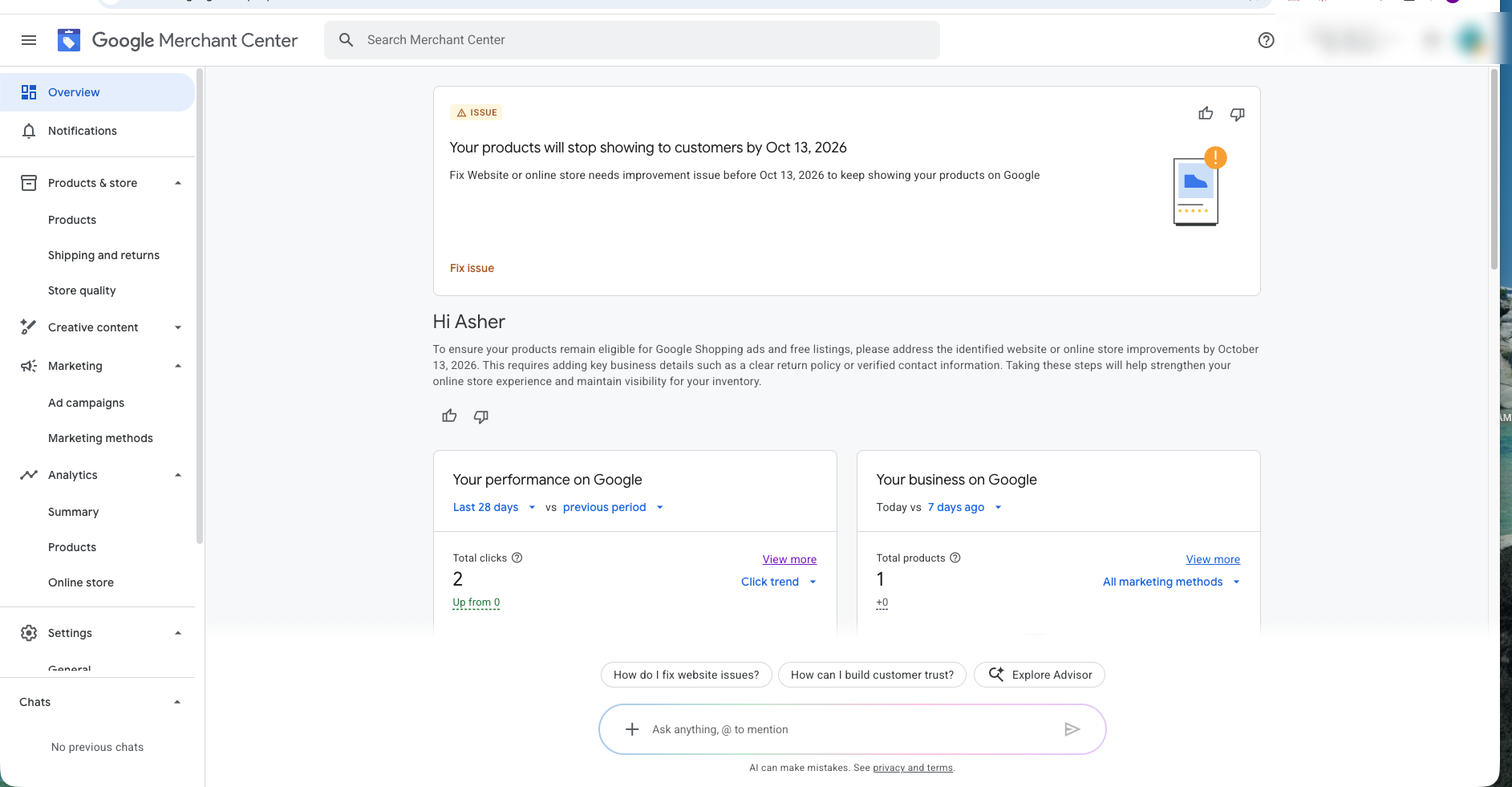
I recently worked through this with a small Australian ecommerce brand selling spa-care kits on Shopify. The Misrepresentation issue cleared after review, and so did a separate "Website or online store needs improvement" warning. Below is exactly what we did, in order, plus what Google's own policy says.
What "Misrepresentation" actually means
Google's Misrepresentation policy is about trust. It covers listings or websites that leave out important information about the business or products, or give misleading information. That includes things like a missing or false business name or contact details, hiding where you're located or ship from, and leaving out total costs like shipping or return fees (Google Merchant Center Help).
The important thing to understand: your store doesn't have to be doing anything shady to get flagged. In my experience, it usually means Google can't confidently tell who's behind the store. Missing, messy or inconsistent business information looks the same to an automated review as a business that's hiding something.
Step 1: Verify your identity first
When I opened the account, the Misrepresentation section showed one message before anything else: "Verify your identity before you request a review." You can't skip this step. The review button stays unavailable until verification is done.
Where to find it: Products, then Needs attention, then View setup and policy issues, then Misrepresentation.
What we used:
- Profile type: Organization, since it's a business, not a personal seller
- Official business registration documents: the business name registration and the tax registration (in Australia, the ASIC business name record and the ABN registration)
Those documents also became the "source of truth" for the business name, legal owner, address and registration number used everywhere else on the site.
One thing that tripped us up: the verification and review state seemed to be tied to the individual Google login. The store owner and I saw different things in the same account. For one of us, the "I disagree with the issue" option was greyed out, and for the other it was active. If something looks stuck, check whether another admin on the account sees something different.
Google has also been adding more verification steps, including video verification in some cases, so complete whatever it asks for promptly (FeedArmy, 2025).
Step 2: Make your website prove you're a real business
Google's guidance for a complete online store is specific. Your site should have contact information and policy pages, including a clear About page, a return policy, shipping information and business information. It shouldn't have leftover template text or images, and links shouldn't lead to 404 errors or bounce back to the homepage (Google Merchant Center Help).
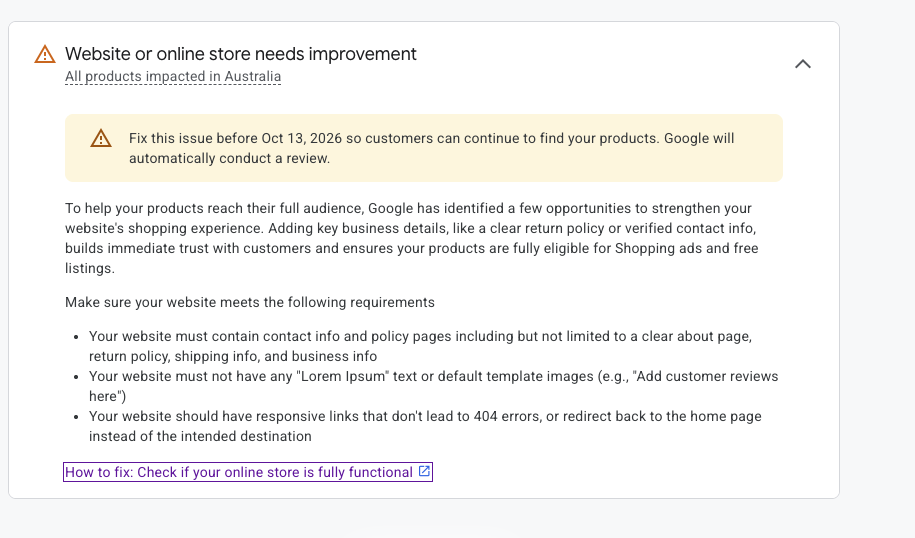
Here's what I checked, and what I found on this store:
| Page or item | What to check | What I found |
|---|---|---|
| Business info | Same name, address, email and phone everywhere | Contact details didn't match across pages, and some used a Gmail address while others used the domain email |
| Contact page | Only real contact details, nothing else | The entire Shipping Policy had been accidentally pasted onto the Contact page |
| About page | Exists and is easy to find | It existed, but only in the footer, not the main menu |
| Privacy Policy | Correct business details and a real date | Business info needed standardizing, and the "Last updated" date was in the future |
| Returns policy | Time limit, conditions, who pays return shipping, refund timing | Already solid: 30-day returns, unused items, damaged or wrong items covered |
| Shipping policy | Where you ship, processing time, costs, delivery time, tracking | Already solid |
| Legal notice | Registered business name, address, registration number | Added the registered address, business email and registration number |
| Homepage | No generic theme content like "Welcome to our store" | Generic template banner still in place |
| All links | No 404s, no redirects to the homepage | All main menu and footer links worked |
None of these issues is dramatic on its own. Together, they make a store look unfinished or inconsistent, and that's what this policy is designed to catch.
The fixes
- Standardize business details everywhere. Pick one business name, one address, one email and one phone number, ideally matching your verification documents exactly. Use your domain email, not a personal Gmail.
- Clean up the Contact page. Just the business name, email, phone and address. Nothing pasted in from other pages.
- Put the About page in your main menu. In Shopify, that's Content, then Menus, then Main menu, then add the existing About page. Being in the footer alone may not be enough to count as "clear."
- Fix small credibility details. Future dates, placeholder text and leftover template sections all chip away at trust.
- Replace generic homepage content. Swap stock theme banners and "Welcome to our store" copy for real branded content and photos.
- Click every link. Main menu, footer, policy pages and social icons. Every one should go where it says.
Step 3: Request the review
Once verification was complete and the site fixes were live, we submitted the review. Google confirmed the Misrepresentation issue had cleared. The separate "Website or online store needs improvement" warning cleared as well.
Google says account reviews typically take about 7 business days (Google Merchant Center Help), so make every fix before you hit the button. Don't make a few changes, request review and hope. Merchants generally get a limited number of appeals, so each one counts (FeedArmy, 2025).
Mistakes to avoid
- Opening a new Merchant Center account to get around the flag. Fix the account you have. A new account doesn't fix the underlying problems, and trying to work around Google's enforcement can put the new account at risk too.
- Requesting review before the site is fixed. You'll burn one of your limited appeals.
- Mismatched details. If your website, verification documents and Merchant Center business info don't match, fix that first.
- Hiding costs. Shipping costs, return shipping and fees should be clear before checkout, not after.
- Leaving Shopify theme defaults in place. Demo text, placeholder review sections and stock images are explicitly called out by Google.
- Not having the right access. I couldn't edit the homepage theme because my Shopify staff permissions didn't include it. If someone else is fixing your store, give them access to Online Store, Themes and Pages, not just Menus.
Misrepresentation fix checklist
- Identity or business verification completed in Merchant Center
- Business name, address, email and phone identical on every page and in Merchant Center
- Domain email used instead of a personal Gmail
- About page in the main navigation
- Contact page with clean, complete contact details
- Shipping policy: regions, processing time, costs, delivery time
- Return policy: time limit, conditions, return shipping, refund timing
- Privacy policy and terms with correct business details and real dates
- No template placeholder text, images or demo sections
- Every menu, footer and social link tested
- All costs clear before checkout
- Review requested only after everything above is live
Still stuck on a Merchant Center issue? I help small ecommerce brands get Merchant Center, Shopping campaigns and tracking set up properly. Get a free account check or see how a paid media audit works.
FAQ
What does Misrepresentation mean in Google Merchant Center?
It means Google believes your listings or website leave out important information or could mislead shoppers about your business or products. Often it's triggered by missing, unclear or inconsistent business information rather than anything deliberately deceptive.
How long does a Merchant Center Misrepresentation review take?
Google says account reviews typically take about 7 business days. Make all your fixes before requesting a review.
Can I just create a new Merchant Center account?
No. Fix the existing account. A new account doesn't solve whatever triggered the issue, and trying to work around Google's enforcement can make things worse.
Do I need to verify my identity to fix Misrepresentation?
If Merchant Center shows "Verify your identity before you request a review," yes. You won't be able to request a review until verification is complete.
What's the difference between Misrepresentation and "Website or online store needs improvement"?
Misrepresentation is a policy issue about trust and transparency, and it can lead to suspension. "Website or online store needs improvement" is about your site being complete and functional: policy pages, contact info, no placeholder content and working links. They often show up together, and the same site cleanup helps with both.